Music Production in Linux - My Reaper Setup using yabridge
Mar 22, 2026
6 minute read
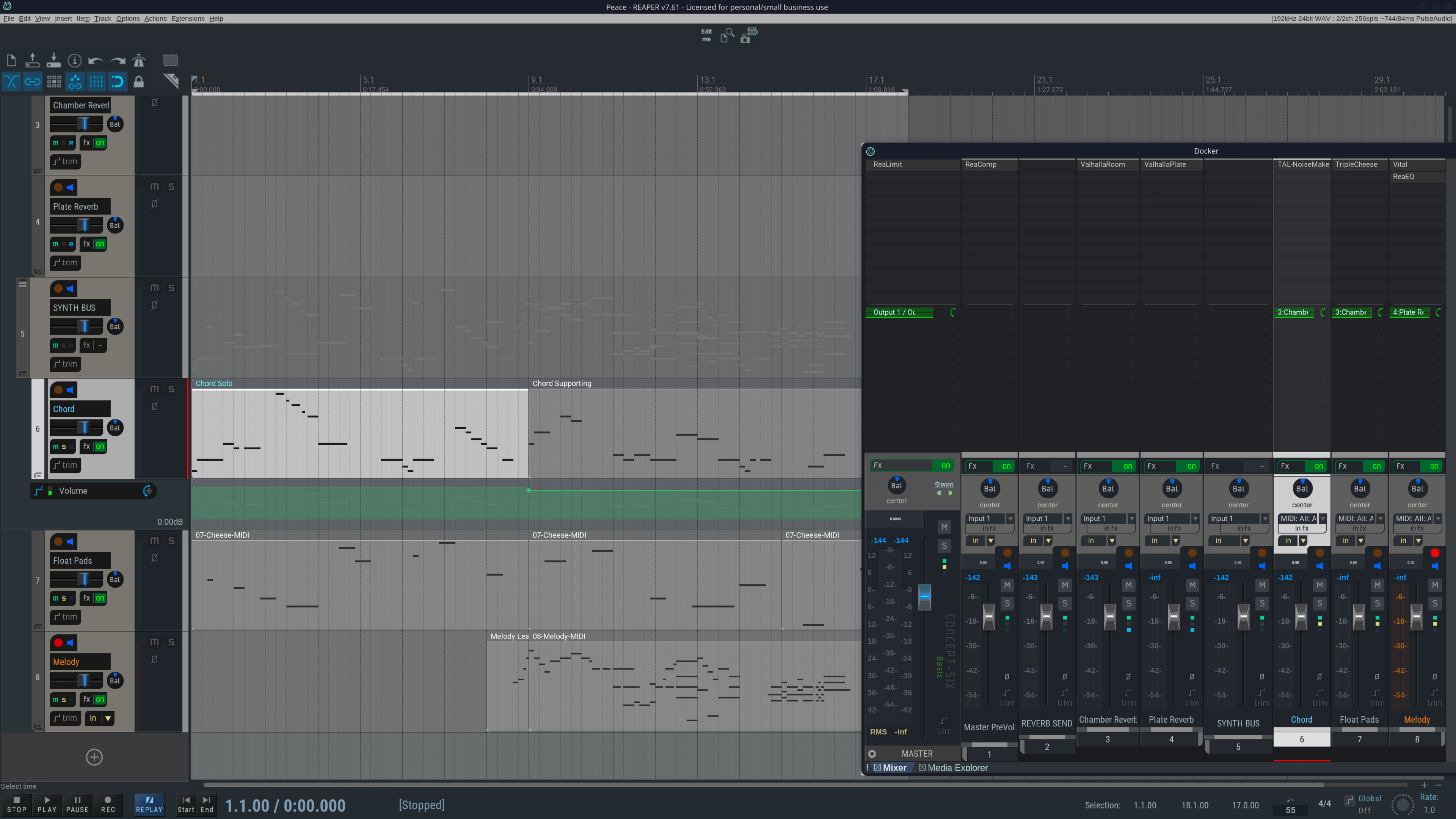
When I first became obsessed with digital music during COVID-19, I would binge endless YouTube videos about the best plugins/VSTs, workstation setups, optimal workflows, and even how to acoustically treat a room. I was overwhelmed by the information overload, which paralyzed me for weeks before I ever started putting notes into songs. For anyone interested or starting to make music for the first time, this blog covers my current setup under Arch Linux, with some handy tips and tricks that I wish I had known beforehand.
Preface - The Most Important Advice
If you haven't built your music setup yet and are curious about Linux, use Windows instead. While support for the Linux ecosystem is improving year after year, the majority of audio software is still built for Windows users first (then Mac second). All my configurations below are solely to get my plugins running under Linux -- extra complexity that takes away energy to produce music. Coming from a background in Computer Science and a minor in Music, I would rather prioritize a seamless experience so as not to hinder my creativity, than spend some amount of time tinkering and distracting me from my workflow. Frankly, my setup is tailored much more to high-end PC users who want to perform music on the side. So, for the composers trying to make music on a computer, a simple Windows 10 laptop/MacBook is all you need to get started.
If, for some reason, you don't want to use Windows as your main operating system, you can also try
- Dual-booting: a dedicated Windows OS just for audio production. Using a dedicated SSD/NVMe for separation of concerns: your main computer and audio workstation are now separate. There are also Linux-based "creativity workstation" OS's for creators that are designed to be dual-booted, or even as your main OS.
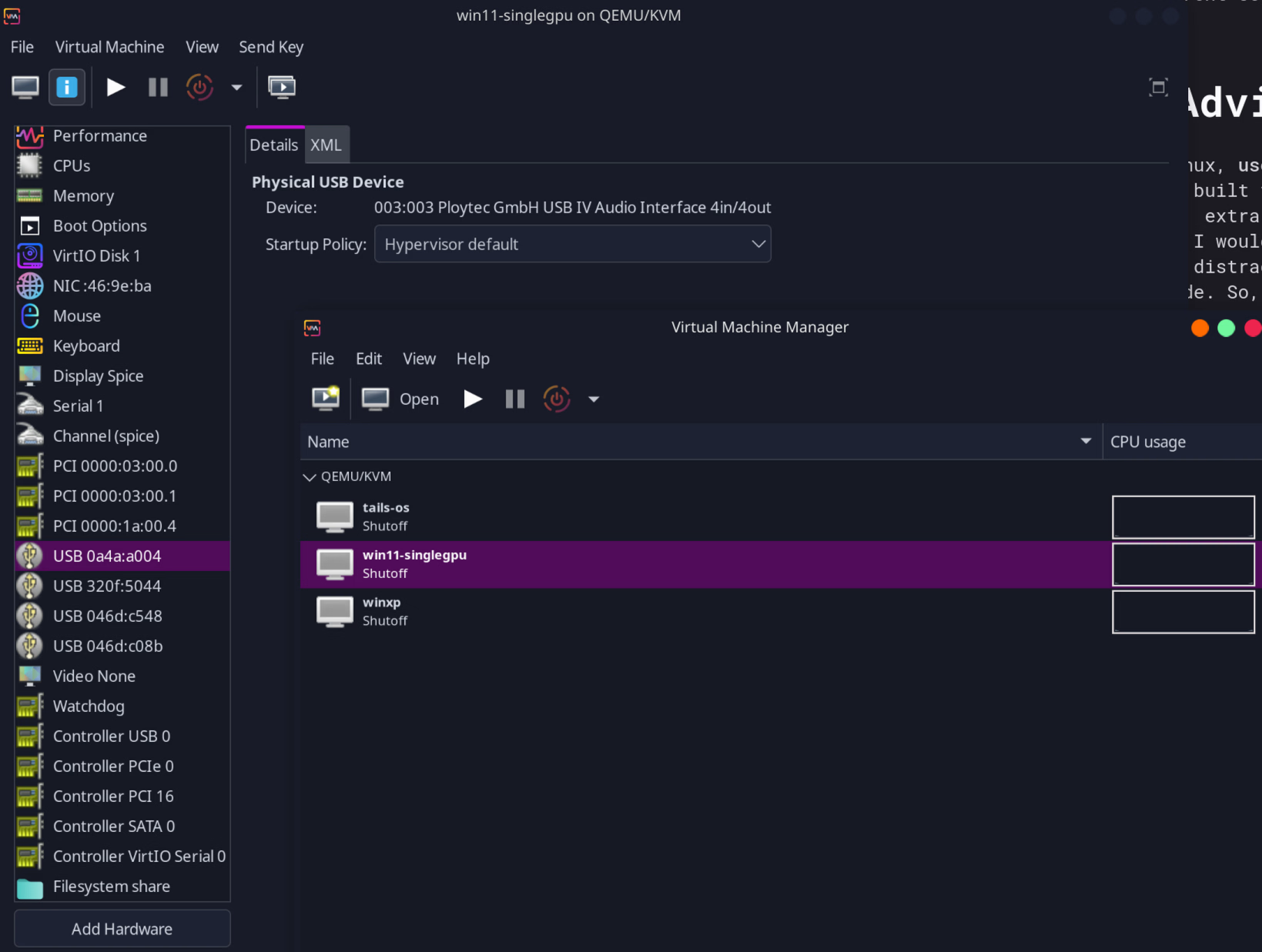
- Virtual Machines: definitely doable, but more annoying than it's worth imo. Especially with dedicated gear like audio interfaces, mixing boards, and physical (MIDI) instruments, you'd have to pass through those devices to the VM or deal with strange behavior. Audio is especially finicky, my audio interface under a Windows 11 VM would randomly cut out and require a reboot. Nevertheless, it's still possible. Here is my QEMU virt-manager setup:
This guide uses Reaper, my personal DAW that is explicitly supported with the tools below. Other popular digital audio workstations (DAWs) should also work, such as Pro Tools, Logic Pro, FL Studio, and Ableton, but I've not tested them personally.
My Linux Setup
This won't be a dummy's guide to Linux. Instead, I compel you to practice reading documentation. The Arch Linux Wiki covers 80-90% of my questions and will be sufficient, even for users of other Distros. Of course, don't limit yourself to just Arch -- the internet is vast. Even just yell at a commercial LLM, they have already scraped the entire web after all.
Against my own advice, my main PC runs Arch Linux like a monolith, i.e., every single package is installed natively without any containers/dockers -- rawdogging my system with 3000+ packages, if you will. While Reaper is a Linux-native DAW I use personally, you can also look at other Linux DAWs such as Bitwig and [Ardour] (https://ardour.org/). Many Windows DAWs mentioned above should work under Wine relatively well.
PipeWire is the modern multimedia framework for audio and video, meant to replace PulseAudio, Jack, and ALSA. Install pipewire and pipewire-pulse, and start their services. I also use wireplumber, a PipeWire session manager, although most users won't need any special configurations. Your DAW should now be able to select PipeWire (or PulseAudio) as your output source.
Now, if you rely on windows plugins/VSTs like I still do, then you'll need some compatibility tool to run them under Linux. I use yabridge, which uses wine to run 32-bit and 64-bit Windows plugins natively. However, yabridge currently only supports wine v9.21, and additional setup is needed if you want to maintain multiple versions on your main system:
- First, create a wineprefix, where you will place your plugins and run it from.
winetricksprovides a visual GUI to help create one quickly. Then place all your Windows plugins into the drive_c folder. I usually organize them insidedrive_c/Program Files/ - Then use
yabridgectl add "/PATH/TO/PLUGIN/FOLDER"for each folder with plugins.yabridgectl listshows all current paths, andyabridgectl rmremoves paths. Finally, runyabridgectl syncto initialize all your plugins. See https://github.com/robbert-vdh/yabridge for full details. - You'll need a build of wine v9.21 (or the latest supported version specified on the GitHub page). Follow the instructions on https://gitlab.winehq.org/wine/wine/-/wikis/Building-Wine to build it manually. If you also strangers online (or too lazy to build it yourself), you can download a prebuilt version such as https://github.com/Kron4ek/Wine-Builds/releases.
- Now whenever you want to run your DAW, set your environments:
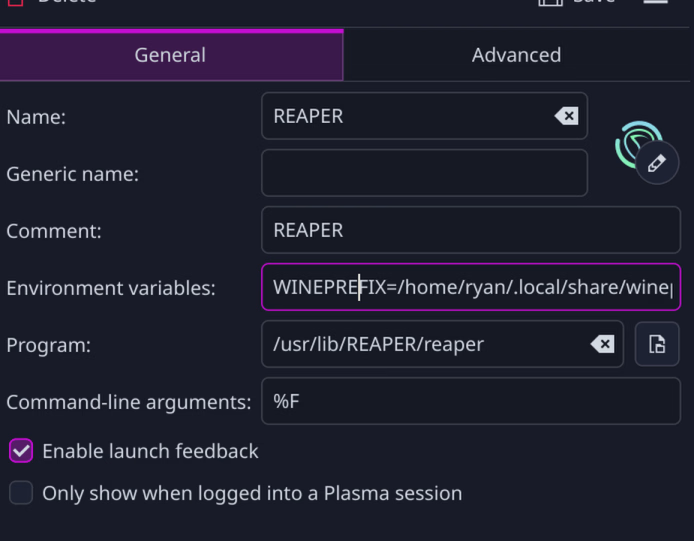
WINEPREFIXto your prefix with the plugins, and appendPATHwith the path to wine v9.21 bin folder. For example, my environment variables are:WINEPREFIX=/home/ryan/.local/share/wineprefixes/wine-yabridge PATH=/home/ryan/Development/Wine/wine-9.21-staging-tkg-amd64/bin:/usr/local/sbin:/usr/local/bin:/usr/binYou could set these permanently, or make a bash script that sets these variables temporary before running the DAW. KDE Plasma has the Menu Editor, which lets me set launch commands so I can just open Reaper like any normal application
Your plugins should now be visible and usable in your DAW! Complicated apps like Native Access may have some issues running, but this setup works for all the VSTs I use regularly.
Other Tips
My audio interface, the ART USB IV 4-in/2-out, splits the speaker and headphone outputs to the front and rear channels, respectively. Obviously, since all applications use the front left/right channels, my headphones don’t have sound. This script uses pactl to manually create a “speaker” and “headphone” sink that can be selected as if they are separate devices. Use pactl list to list your device name and replace it for each pw-link command.
#!/bin/bash
# Creates the speaker/headphone sinks
pactl load-module module-null-sink sink_name=speakers object.linger=1 media.class=Audio/Sink media.role=music channel_map=front-left,front-right
pactl load-module module-null-sink sink_name=headphones object.linger=1 media.class=Audio/Sink media.role=music channel_map=front-left,front-right

# Force headphone sink to be active (May not be needed)
pactl set-sink-volume headphones 65536
pactl set-sink-mute headphones 0
pactl suspend-sink headphones 0

sleep 1

# Link the sinks to the soundcard
# The name of my audio interface is: alsa_output.usb-Ploytec_GmbH_USB_IV_Audio_Interface_4in_4out_no_serial_number-00.analog-surround-40
pw-link speakers:monitor_FL alsa_output.usb-Ploytec_GmbH_USB_IV_Audio_Interface_4in_4out_no_serial_number-00.analog-surround-40:playback_FL

pw-link speakers:monitor_FR alsa_output.usb-Ploytec_GmbH_USB_IV_Audio_Interface_4in_4out_no_serial_number-00.analog-surround-40:playback_FR

pw-link headphones:monitor_FL alsa_output.usb-Ploytec_GmbH_USB_IV_Audio_Interface_4in_4out_no_serial_number-00.analog-surround-40:playback_RL

pw-link headphones:monitor_FR alsa_output.usb-Ploytec_GmbH_USB_IV_Audio_Interface_4in_4out_no_serial_number-00.analog-surround-40:playback_RR

# Set the default sink
pactl set-default-sink speakers
With more finesse, you could also rewrite this script into a Wireplumber config and let systemd handle it automatically. I just run this bash script at startup which works the same.
My Reaper Workflow
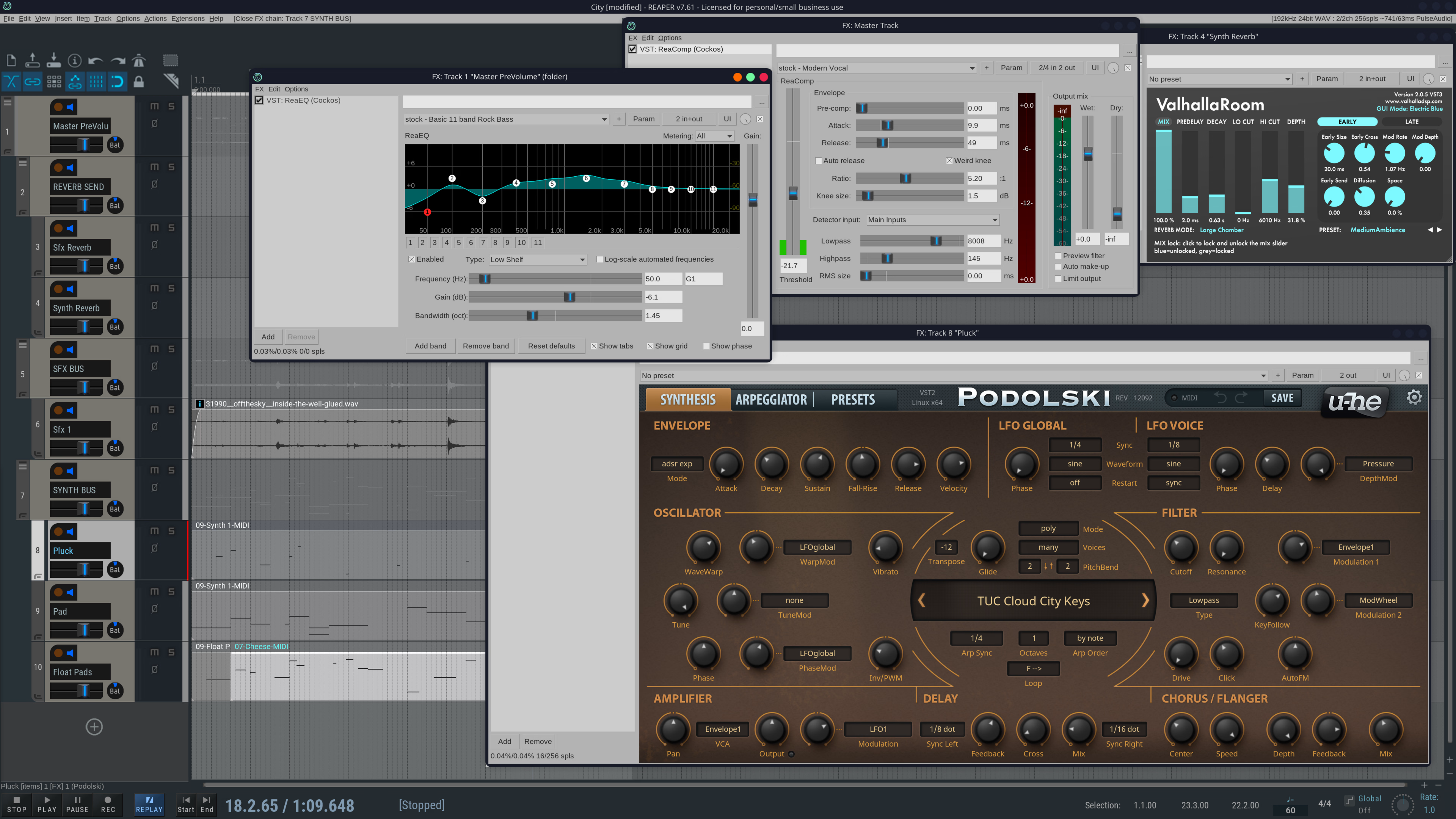
…is pretty basic, honestly, but it works just like it's running under a native Windows PC. I like mixing interesting nature, digital, and other bizarre samples with synths and plugins to create my tracks. Right out of the gates, Reaper handles this perfectly fine. Where it does excel is the vast customization and depth of every feature, reasonable pricing model, and community support through plugins and themes. Set it up once, and you'll probably still tinker with your configurations until it's the “perfect setup with no flaws this time,” but still complain nevertheless. I usee the CONCEPT SIX Theme by PhelixK, which is just one of many options you can find on the Reaper forum.
From here, how you produce music is a personal endeavour, which I leave as an exercise to the reader. It's a beautifully satisfying passion, creating something you can listen back on with awe, and I hope this guide may help awaken someone's passion for music production!
Free Instruments and VSTs
Here is a collection of free instrument plugins compiled by other friends and me.
-
https://u-he.com/ - Native Linux & Windows Synths and Effects. Their Freeware products are just as capable as their paid counterpart. An easy recommend for me.
-
https://labs.spitfireaudio.com/ - Spitfire Audio: LABS (download the Spitfire player). Collection of orchestral, concert, and experimental instruments.
-
https://www.spitfireaudio.com/en-ca/collections/bbc-symphony-orchestra - Spitifre Audio: BBC Symphony Orchestra Discover (50$ but free if you fill out a survey and wait 30 days. Also uses the Spitfire player). Pretty good high quality orchestral instruments.
-
www.orchestraltools.com/sinefactory - SineFactory. Offers various decent qualiity instruments. (download the SINE player and download desired instruments)
-
https://www.native-instruments.com/en/catalog/music-creation/free/?page=1 - Free instruments through Native Instruments. I used Analogue Dreams and Ethereal Earth before. You need to download Kontakt Player to use these.
-
https://valhalladsp.com/ - Fun reverb and delay plugins. The three free options ranges from subtle reverb, to super massive echos and crazy effects.
-
https://www.strezov-sampling.com/products/?freebies=1 - Strezov Sampling Instruments. These also use the Kontakt Player. I've used Diamond Jazz Trio instruments in the past. You need the Pulse app to download these: https://pulsedownloader.com/
-
https://vital.audio/ - A popular wavetable synth that's highly customizable. A massive community with a terrifying number of user presets here: https://presetshare.com/presets?instrument=2
-
https://www.decentsamples.com/product/decent-sampler-plugin/ - free samples by Dave Hilowitz (check out his Youtube channel). Downloud the plugin and then instruments you want under Freebies
-
Soundfonts - You can find .sf2 files for many games easily through google. I use these primarily. Each DAW has a soundfont player already, I think. I recommend the Touhou and SGM soundfonts.